Open the free web studio. No installation or sign-in is required. On a phone, use Tools for recent tabs, tuner, sounds, audio input and settings. The More button beside playback reveals loops, count-in and metronome.
Open a supported Guitar Pro file from your device, or start with the original Green horizon study. Swipe across the fretboard, or turn your phone sideways for more room. Tap Listening practice and Finger & light guides to expand those controls.
Your settings and recent tab copies stay in this browser. Use Tools → Practice & settings → Export settings for a backup, and Import settings to restore it. Settings backups do not contain song files. Keep your original tabs. Browser cleanup and private browsing can remove local data.
After the app and selected sound library finish downloading, cached resources can be used offline. Add the site to your Home Screen for an app window. Switching away from the app pauses playback and stops microphone capture.
Microphone and USB guitar input depend on the devices exposed by your browser. Safari on iPhone does not provide Web Bluetooth, so physical Fret Zealot LEDs require a supported browser such as Chrome on Android. Native ASIO and direct input monitoring are unavailable on the web. Real phone audio and hardware compatibility still need testing.
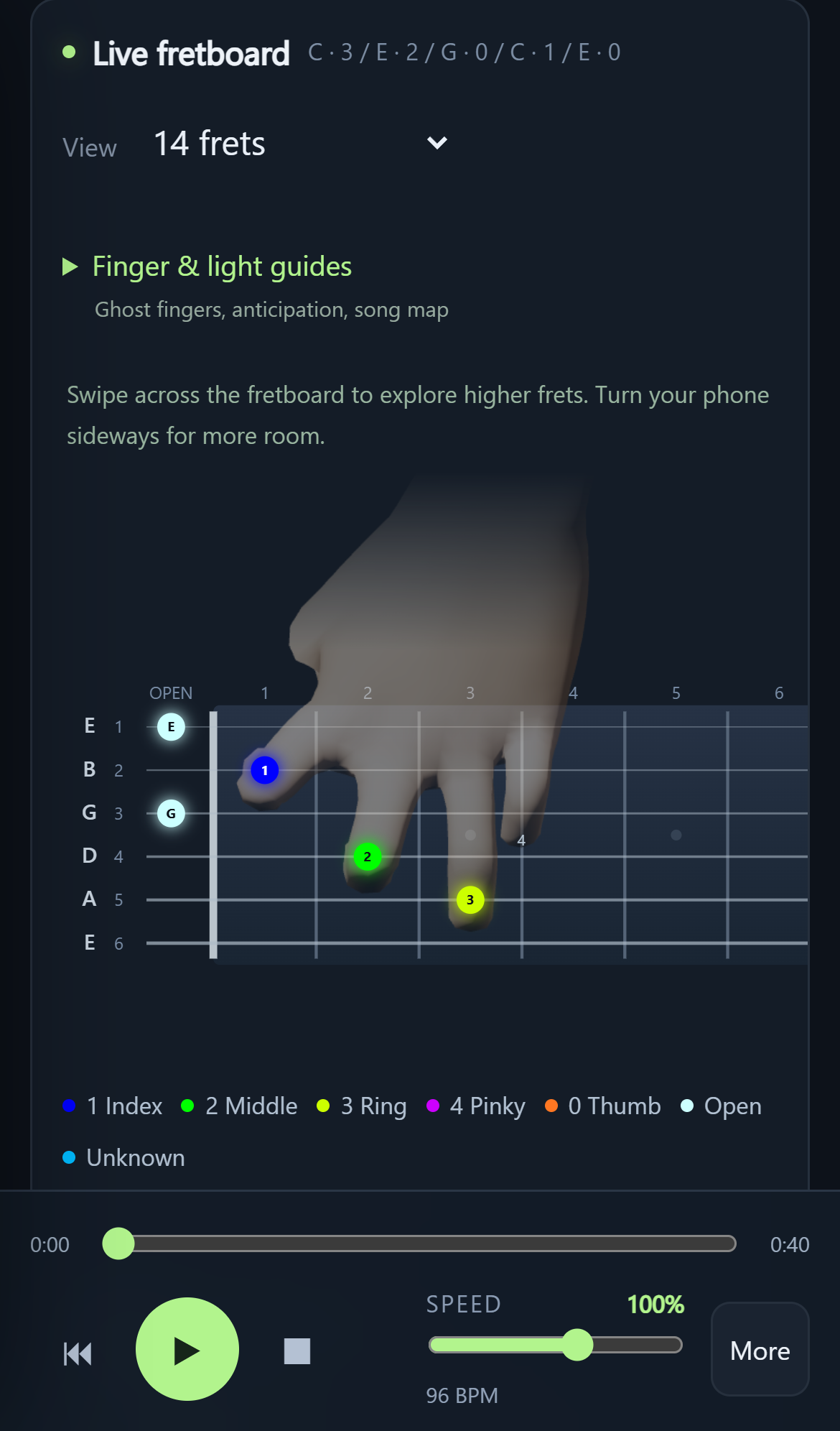
Enlarge screenshotThe web studio at phone width, showing the original Green horizon study.
Start here
Your first five minutes
Green Guitarist Studio is a free local Windows desktop app by Jonathan A. Corona. You can start without a guitar LED device or an online account.
Install and open Green Guitarist Studio from the desktop or Start menu.
Try the included Green horizon study. It is an original neoclassical E minor exercise with chords in every lead-track measure, plus a separate rhythm guitar track.
Press Play or Space. Watch the tab and virtual fretboard follow the music.
Slow down the playback speed, then use Practice this bar to repeat a small section.
When ready, use Open tab or Ctrl+O to open a supported Guitar Pro file you have permission to use.
Your practice preferences and recent tabs save automatically. Playback and audio capture remain stopped when you launch the app.
Keep the Windows app up to date
Version 0.6.12 introduces in-app updates. Install it once using the website download. After that, the Windows app checks at startup and every 12 hours while open. Use Help > Check for updates or the sidebar to check whenever you like. Review the release notes, choose Download update, then Restart and install when ready. Your practice session and settings are saved first. Choose Later to continue practicing. Closing the app does not install a downloaded update. You can turn off automatic checks in Software updates. The browser studio continues to use its own Update studio notice.
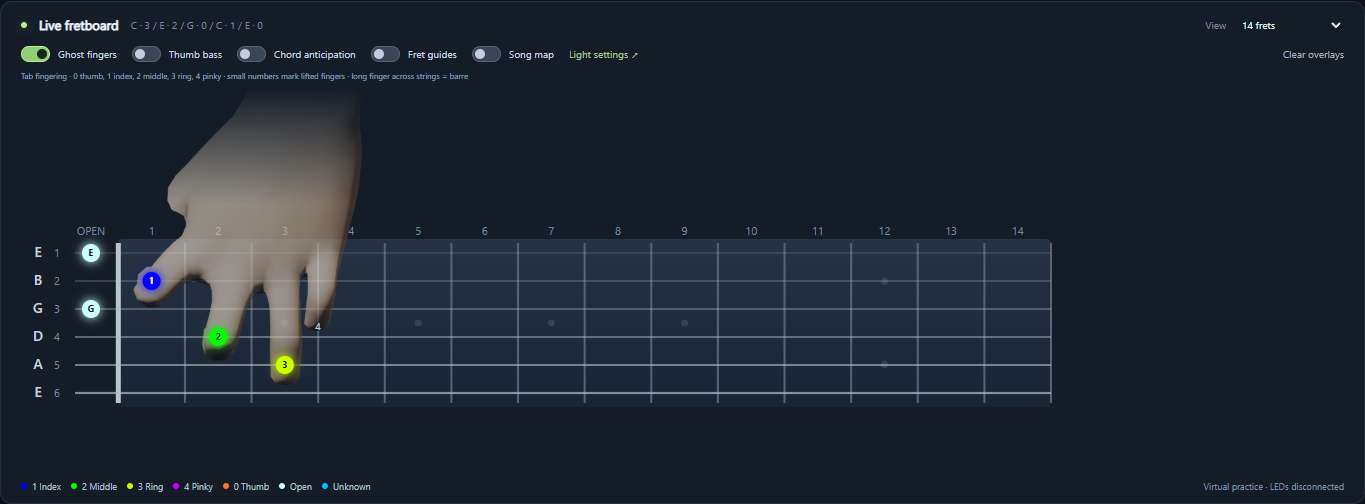
Enlarge screenshotStart with the rhythm track and its open C shape. The melody and accompaniment can be selected separately.
Explore Green horizon
The updated original 16-bar study is a neoclassical etude in E minor at 108 BPM. Every lead-track measure includes a full chord. Start with Em, Am and B7, then follow a descending chord sequence, harmonic-minor runs and a diminished-chord resolution. The upper-register passage reaches fret 18 in measure 15. Choose the 18-fret view for that passage. Written finger numbers give you a consistent starting point. The Rhythm guitar track alternates bass notes and chords. Slow the study down and loop a few bars before joining the phrases. Older guide screenshots show an earlier arrangement of the same study.
Your music
Find and download free Guitar Pro tabs
Learn what Guitar Pro tabs are, find downloadable files from Ultimate Guitar and other sources, and open them in Green Guitarist Studio.
The guide explains free and paid download differences, phone and computer steps, supported file formats, and common download problems.
Your music
Open a tab and choose a track
Use Open tab, press Ctrl+O, or drag a Guitar Pro file into the app. Then select the guitar track you want to practice.
The app checks the actual file format and embedded version. Supported extensions include .gp3, .gp4, .gp5, .gpx, and .gp; an extension alone does not establish compatibility. See the compatibility guide.
The last 20 opened files appear in Recent tabs. In the Windows app, these are references to your files, so moving or deleting a file can make a saved entry unavailable. Removing an entry from the list does not delete your file.
The web studio instead keeps private copies in browser storage, up to 20 tabs within 80 MB. Older copies may be removed to make room. Removing a web recent tab deletes its saved browser copy, not your original.
The last available tab can reopen with its selected track, position, and loop. No commercial song library is included.
Enlarge screenshotChoose Lead guitar or Rhythm guitar using the track selector. Green horizon contains 16 measures.
Practice
Slow it down. Loop it. Make it yours.
Playback speed ranges from 25% to 150%. Choose a comfortable speed where you can make the transitions cleanly.
Drag across bars in the tablature, or click the first bar and Shift-click the last. Right-click the highlighted range and choose Loop selection. On a phone, enable Select bars, tap the first and last bars, then tap Loop selection. You can still type the first and last measures in the loop controls and enable Loop. For one measure, choose Practice this bar. Temporary selections clear after starting a loop. A soft green highlight shows the active loop. Clear selection clears a temporary selection; turn off Loop to stop looping and remove its green highlight.
Enable Count-in to give yourself time to get ready.
Enable Click for the metronome during normal playback.
Click the tablature or use the transport slider to seek to a new position. While Loop is on, clicking outside its range returns to the loop start; turn Loop off to seek freely.
Use the VOL slider beside the playback progress bar to adjust master volume from 0% to 100%. Mute silences playback without losing your chosen level. Volume and mute settings are saved automatically. Open Audio settings to choose a Playback output, such as speakers, headphones, or an audio interface. System default follows your device settings, although Windows app-specific routing can override it. Your output choice is saved, and an unavailable or disconnected output falls back to default. Browser support varies.
Try three comfortable repetitions before nudging the speed up. You can always bring it back down.
The tabs, fretboard, and outgoing LED updates follow normal playback, seeking, and tempo changes. Count-in, metronome, and speed apply to normal playback; Listen & wait is untimed.
Enlarge screenshotA two-bar loop at 60% speed, with count-in and metronome controls alongside it.
Visual guidance
Ghost fingers and chord anticipation
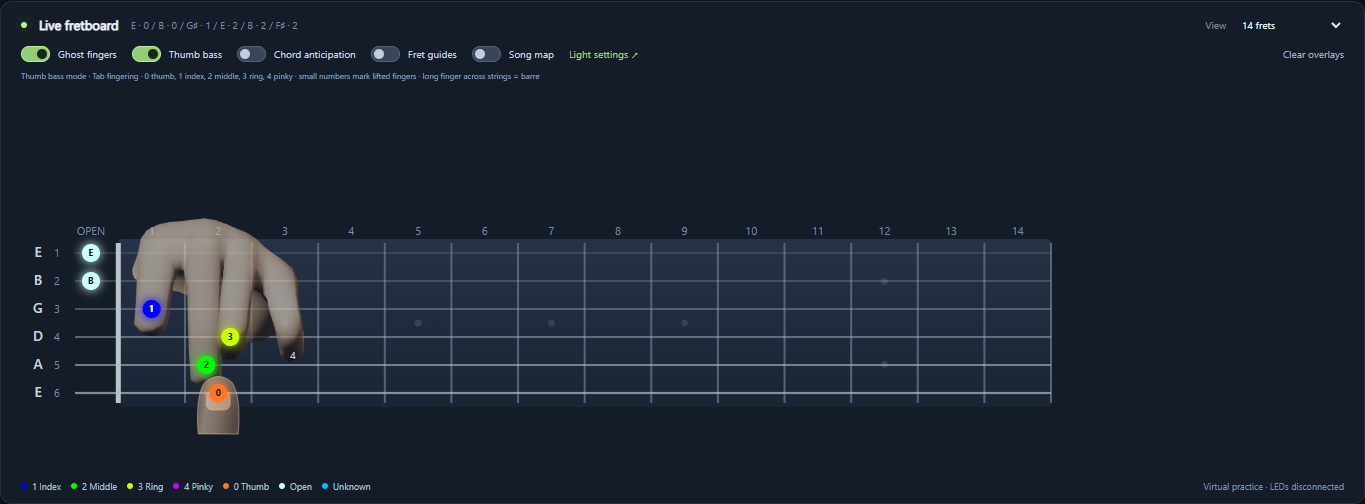
Ghost fingers overlays a translucent fretting hand at the suggested fretting positions. A long finger across several strings represents a barre. Mini-barres limit sideways and backward bending. If a shape exceeds the hand model's reach, the note markers remain and the guidance reports that limitation. When thumb 0 frets the low sixth string, the palm tucks behind the neck while the fingers and short thumb tip form a grip.
The finger numbers are 1 index, 2 middle, 3 ring, 4 pinky, and 0 thumb. Open strings need no fretting finger. Written fingering in a score takes priority; otherwise the app suggests a chord shape or hand position.
Finger colors switches the legend from pitch colors to finger colors. Notes assigned to the same finger share a color, including a suggested barre.
Chord anticipation analyzes the whole selected track on your device against a dictionary of open, movable, partial and seventh-chord shapes. It recognizes arpeggios, uses neighboring bars to keep shared fingers consistent, and updates its suggestions when you change Thumb bass mode. The caption says Full track analyzed when ready. During analysis, current-bar guidance remains available. It previews the target positions across the current bar. These positions form a sequence: you should not hold every highlighted fret at once. Beat cards help show the order and position changes.
Chorded Playing
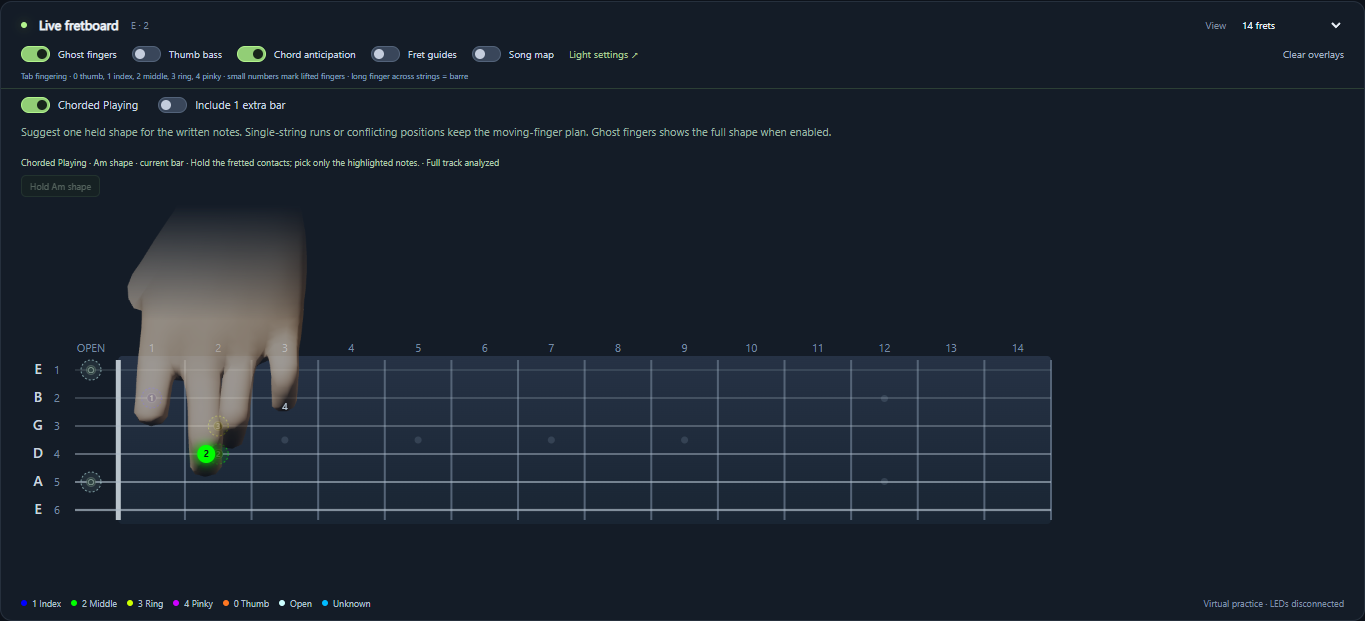
Enable Chord anticipation to reveal the Chorded Playing switch. With it off, the normal moving-finger sequence remains. With it on, the app combines the actual string and fret positions in this bar into a shared held shape, useful for picked chords and arpeggios.
Enable Include 1 extra bar to try fitting the current bar and the following bar into one shape. The preview respects the end of a selected loop. Enable Ghost fingers to see the whole shape, while the current notes retain their brighter colors. Pick only the highlighted notes. The app does not add notes or rewrite your tab.
When a string needs different frets, the stretch is too wide, or written fingering conflicts, the app explains why it is using the moving-finger plan. Both switches save automatically. This mode is available in the web studio and Windows app.
Suggested fingerings can be imperfect, especially for unusual voicings. Choose a comfortable position. All these display switches save automatically.
Enlarge screenshotChorded Playing holds an open A minor shape in measure 2 of the neoclassical Green horizon study. Brighter contacts identify the notes to pick.Enlarge screenshotThumb bass uses a short thumb at string 6, with the upper knuckles raised clear of the neck.
Setup
Choose your microphone or guitar input
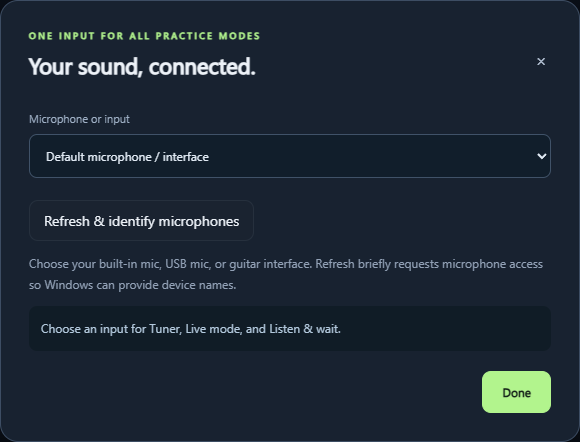
Open Audio settings in the sidebar. Use Refresh & identify microphones to request microphone permission and show the available device names.
Select your built-in mic, USB mic, or guitar interface exposed as a Windows audio capture device. Tuner, Live mode, and Listen & wait all use this choice.
Use a clean signal with modest gain. Heavy distortion and room noise make pitch detection harder.
A passive guitar needs a suitable audio interface. A headphone output is not a guitar input.
Check that Windows allows microphone access for desktop apps.
Changing devices stops capture. Start the desired listening mode again afterward.
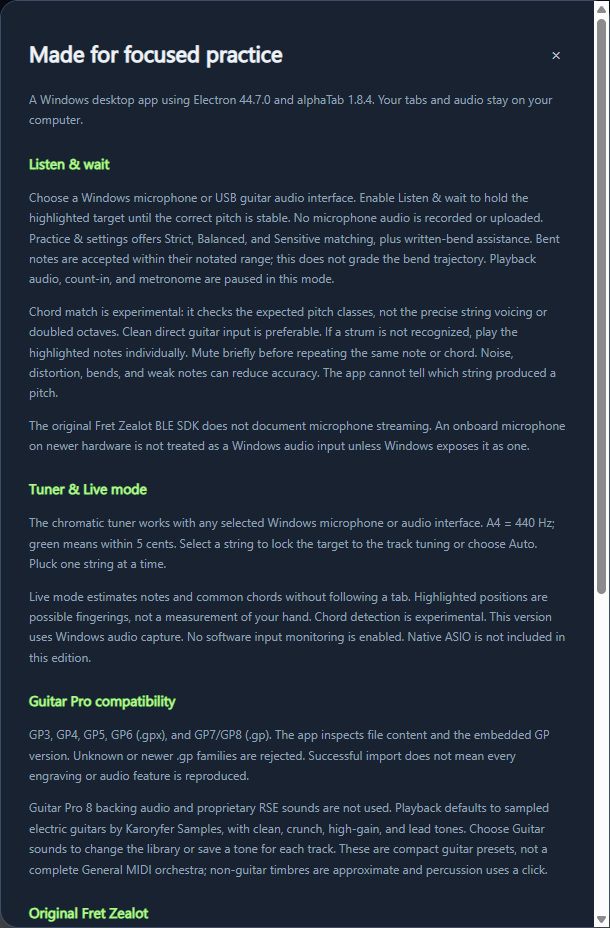
The Windows app uses system audio capture and does not include native ASIO or software input monitoring. Device choice is saved. No microphone audio is recorded or uploaded by the app.
Enlarge screenshotOpen Audio inputs, then refresh to identify devices. No audio input has been started in this capture.
Listening
Listen & wait, chords, and bends
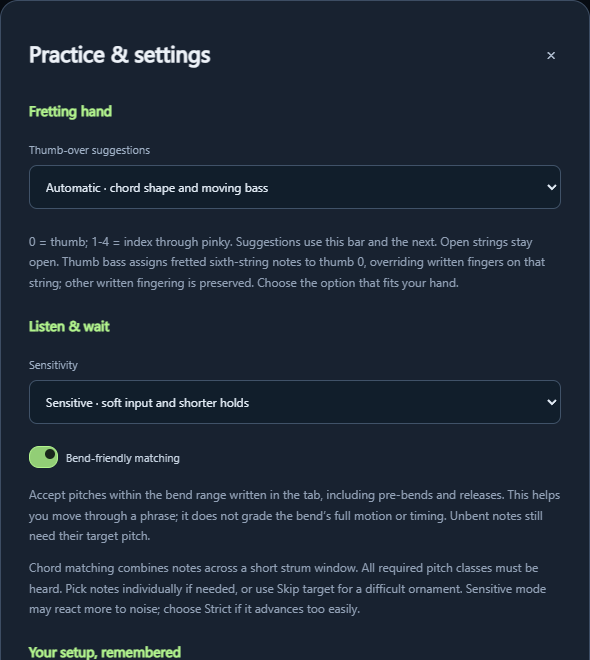
Enable Listen & wait to hold each target until the app hears a stable matching pitch. Playback audio pauses, while the tab, fretboard, and LEDs stay on the target.
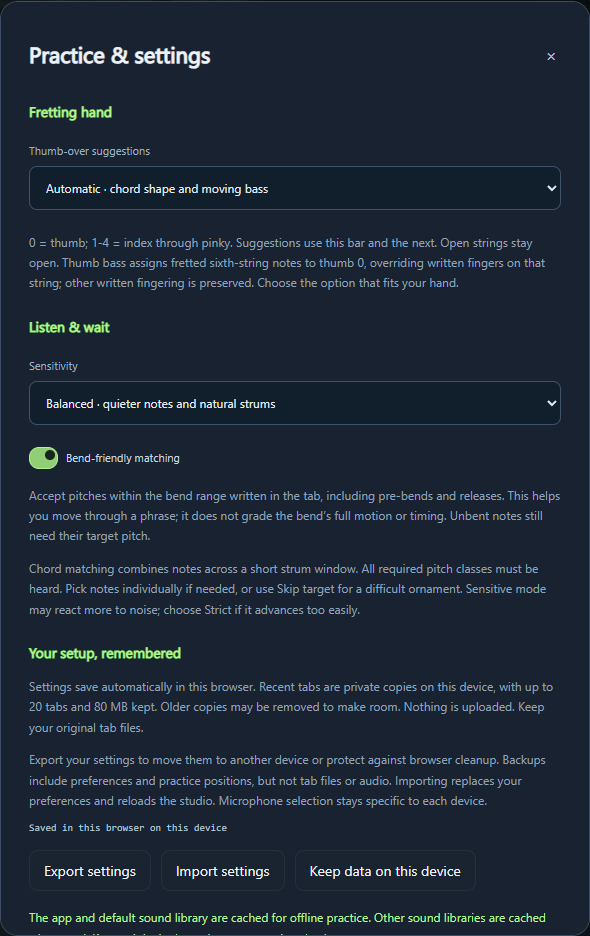
Under Practice & settings, try Sensitive if quieter notes are being missed. Balanced is the default; Strict requires stronger confirmation. Higher sensitivity can also react to more background noise.
Chord match (beta) checks the expected pitch classes across a short strum window. It cannot prove that every string or doubled octave is correct. If a chord is difficult to recognize, disable chord matching and pick each highlighted target pitch separately.
Bend-friendly matching accepts pitches within the bend or whammy range written in the score. It assists progression; it does not grade the full bend motion or timing.
Briefly mute between identical repeated notes or chords so the app can detect a new attack. Use Skip target for a difficult ornament. Recognition depends on your signal and remains experimental with real guitar audio.
Enlarge screenshotSensitive matching and bend assistance are configured in Practice & settings.
Listening
Tune up and explore Live mode
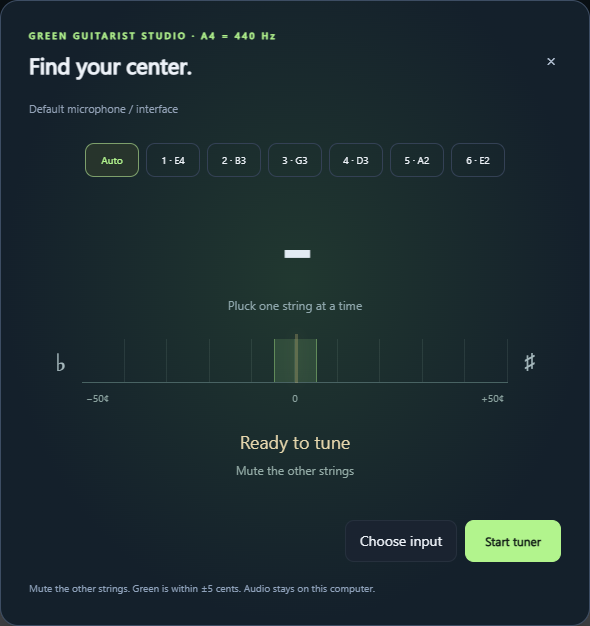
Choose Guitar tuner → Start tuner. Pluck one string at a time. Auto mode finds the nearest chromatic note; the string buttons lock to the selected track’s tuning.
The tuner shows frequency, cents, and flat/sharp direction, with a green center within ±5 cents. Its reference is A4 = 440 Hz.
Live mode listens without following a tab, displaying estimated pitches and common chord names. The fretboard shows one possible position for what it hears.
Audio alone cannot identify your actual string, fret, hand position, or doubled chord voicing. Chord names are estimates. Close the tuner or turn off the listening mode to release the audio input.
Enlarge screenshotThe tuner before capture starts. Choose an input, then Start tuner and pluck one string.
Visual guidance
Song maps, white lights, and fret guides
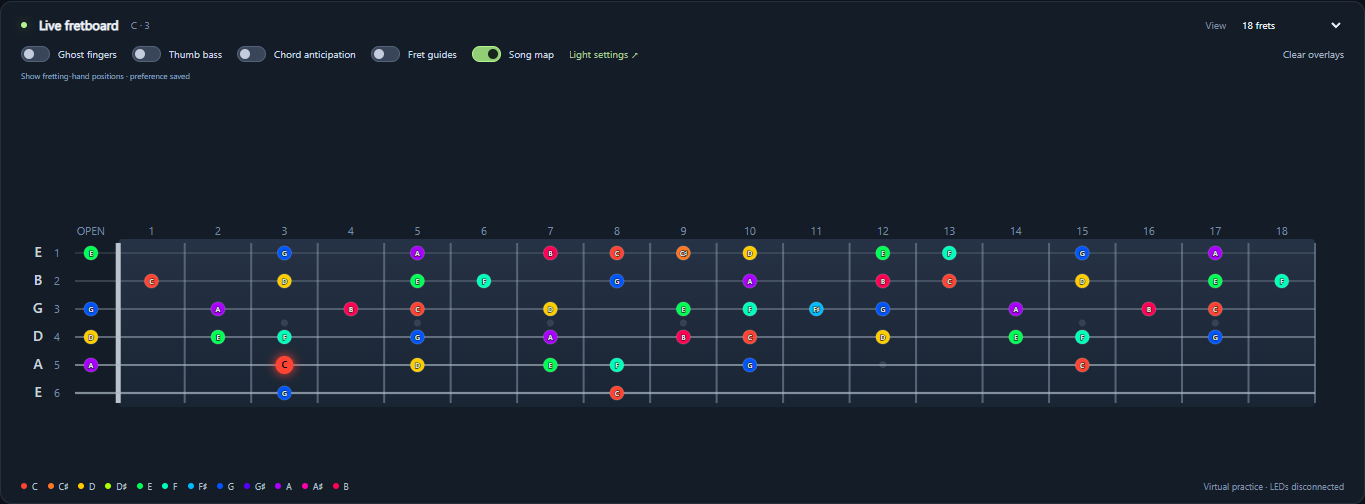
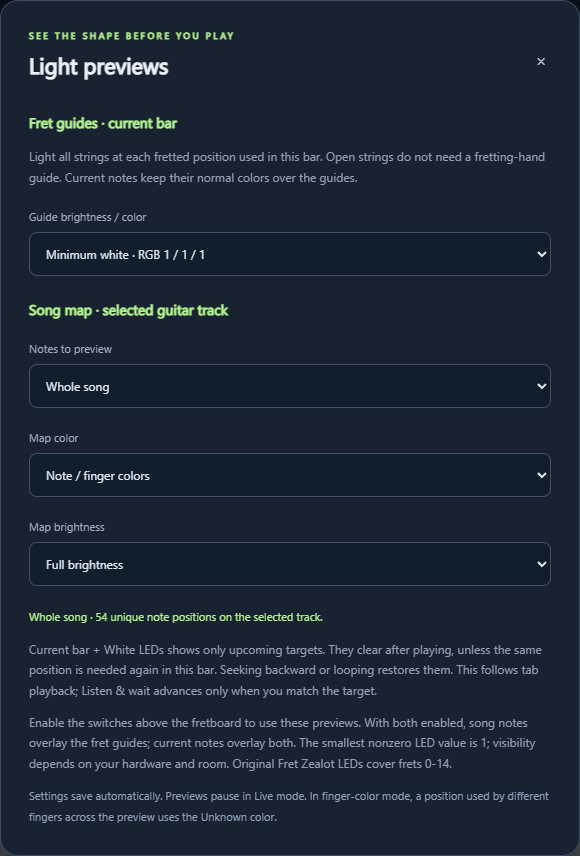
Song map shows the positions used by the selected guitar track. In Light settings, choose the whole song, current bar only, or the current bar plus 1-20 bars ahead.
Choose note/finger colors or white, and dim or full brightness. With Current bar only + White LEDs, upcoming targets stay white until played. Current notes use their normal colors; completed targets disappear unless needed again. Looping or seeking back restores the preview.
Fret guides lights every string at frets used in the current bar. Choose minimum white, minimum green, or full white. Current notes appear above the background guides.
Clear overlays disables all four visual guidance layers. The 14, 18 and 24-fret virtual views scrolls horizontally rather than shrinking its string spacing. Original Fret Zealot LEDs cover only frets 0-14.
Enlarge screenshotThe lead track uses positions from open strings through fret 18. Whole-song mode makes the complete route visible.Enlarge screenshotLight previews configure the whole song, current bar or up to 20 bars ahead, with color and brightness options.
Hardware
Connect the original Fret Zealot
Turn on the original Fret Zealot and disconnect it from other apps.
Make sure Windows has a working Bluetooth Low Energy adapter.
Click Connect Fret Zealot and select your device.
Start with the included study and compare its onscreen notes with the LEDs.
The integration targets six strings and frets 0-14 using the manufacturer SDK protocol. Out-of-range notes are omitted from LED output. Screen and LED colors are matched within the device’s supported color range, but physical appearance can differ.
Command generation and synchronization have software tests. Physical pairing, LED appearance, latency, and reliability still require verification on the actual device.
A hardware microphone is usable only if it appears as a Windows audio input. The app does not use an undocumented onboard microphone stream.
Enlarge screenshotUse Connect Fret Zealot in the top right. This screenshot shows the disconnected state.Enlarge screenshotLight previews configure the whole song, current bar or up to 20 bars ahead, with color and brightness options.
Reference
Files, hardware & compatibility
The desktop engine uses Electron 44.7.0; both the desktop app and web preview use alphaTab 1.8.4. Representative file tests cover these families:
Family
Extension
Representative version tested
Guitar Pro 3
.gp3
3.00
Guitar Pro 4
.gp4
4.06
Guitar Pro 5
.gp5
5.10
Guitar Pro 6
.gpx
GP6 BCF container
Guitar Pro 7
.gp
Embedded family 7
Guitar Pro 8
.gp
Embedded version 8.1.1
Unsupported: Guitar Pro 1/2, unknown or newer families, protected/encrypted formats, and unrecognized file headers. A future file ending in .gp is not automatically supported. Representative tests do not cover every notation feature or vendor revision.
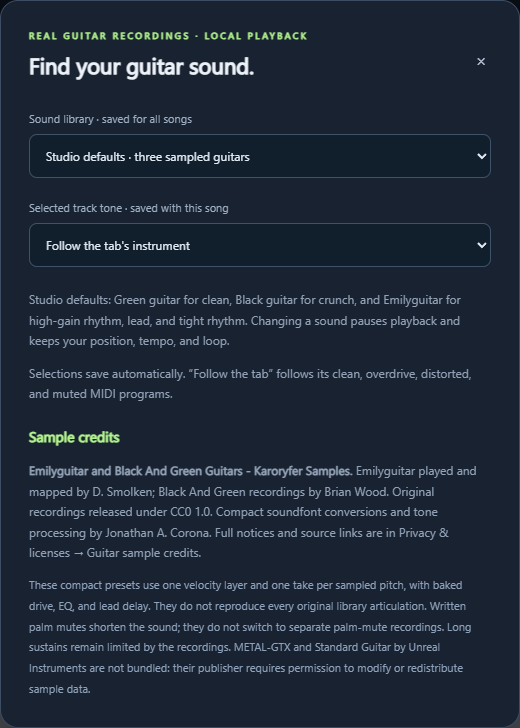
Playback defaults to sampled electric guitars by Karoryfer Samples, with clean, crunch, high-gain rhythm and lead presets. Their credits and CC0 license are available in Privacy & licenses. Proprietary RSE instruments and embedded backing audio are not used. Native ASIO is not included in this release.
The desktop installer is for Windows x64 and is currently unsigned. Hardware behavior and real-guitar recognition require practical testing.
Enlarge screenshotCompatibility & shortcuts explains supported files, audio features, and the original LED hardware.
Your setup
Recent files and saved settings
The app saves display choices, tempo, count-in, metronome, input device, listening preferences, window bounds, recent tabs, and per-file practice sessions to a local JSON file.
In the web studio, use Practice & settings → Export settings or Import settings. For the Windows app, use Practice & settings → Show settings.json to find it. Close the app before editing the JSON manually. If a configuration file is damaged, the app keeps a backup before restoring defaults.
Recent entries point to files in their original locations. The app does not upload or copy them into an online song library. Removing an entry erases its saved reference/session, not the underlying score.
Enlarge screenshotThe web studio offers Export settings and Import settings for moving your preferences between browsers.
Troubleshooting
When something isn’t working
The app doesn’t hear my guitar
Check the selected input and Windows microphone permissions. Try a clean signal, move the mic closer, reduce room noise, and choose Sensitive. Briefly mute between repeated identical targets. Chord recognition is experimental.
A tab won’t open
Check the actual file version against the compatibility guide. Renaming a file does not convert its format. If a recent entry is unavailable, use Open tab to find the file at its new location.
The LEDs don’t match the whole neck
The original device supports frets 0-14. Notes beyond that remain onscreen. Check the selected guitar track and turn off Song map or Fret guides if you only want current-note lights.
I need to stop the overlays
Use Clear overlays in the desktop app.
Enlarge screenshotFor playback problems, check the selected sound library and guitar tone in Guitar sounds.
Your setup
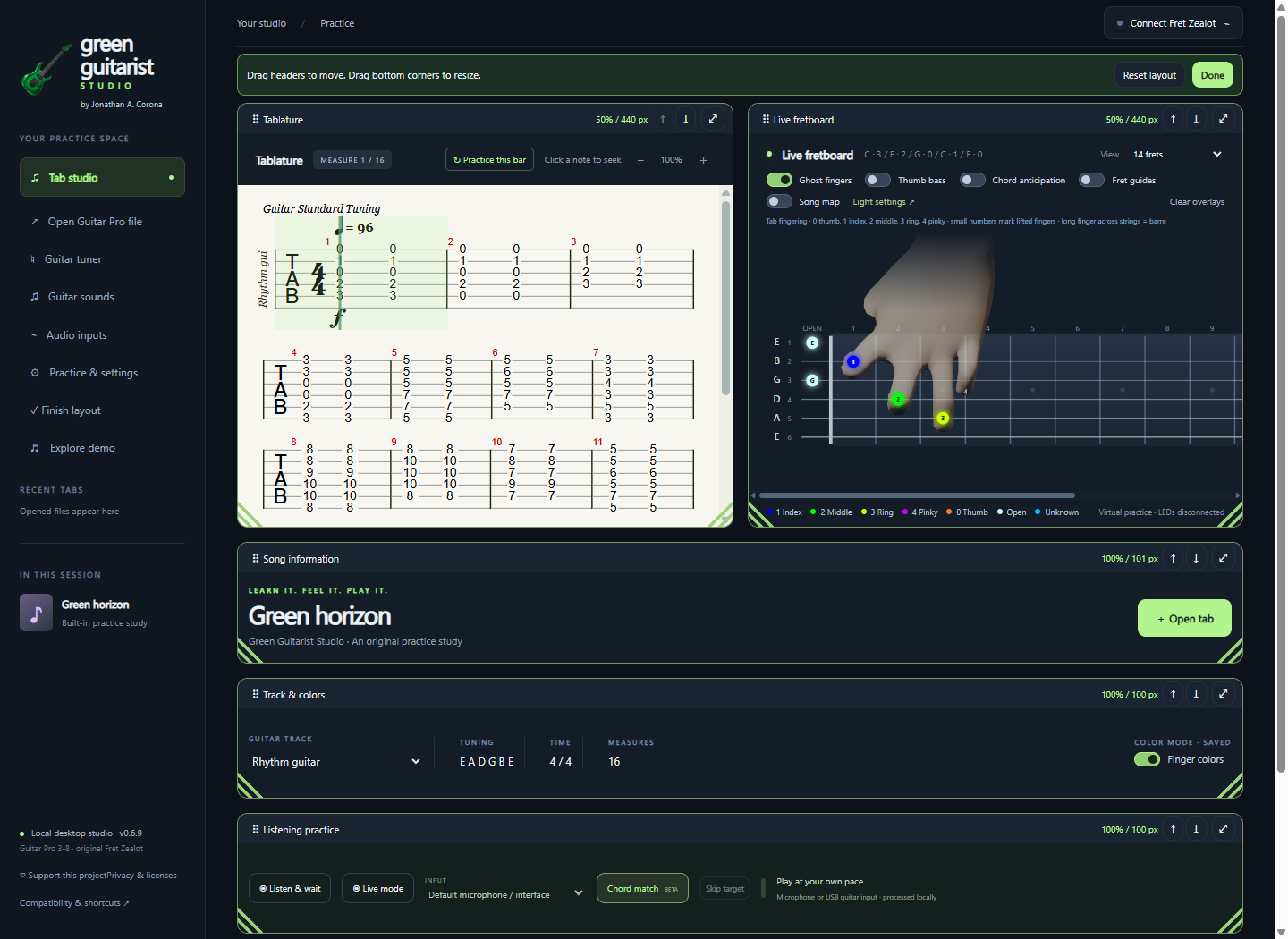
Arrange and resize your studio
Choose Edit layout in the sidebar. On a phone, open Tools first. You stay in the studio with your song and practice controls on screen.
Drag a pane header onto another pane to move it. Place Tablature above Live fretboard, or put the fretboard first. The outlined pane marks the drop target. You can also use the up/down buttons, or focus the header and press Alt + Up or Down.
Drag either bottom corner to change width and height together. Pull down to make a pane taller, or pull inward to narrow it. Width gently snaps near half or full size, so two half-width panes can sit side by side when there is room. Smaller screens wrap panes onto the next row.
For keyboard resizing, focus a corner and use Left or Right for width and Up or Down for height.
Choose Done to hide the handles. The expand button fills the window with a pane; press Escape or the same button to restore its saved size.
Song information, track controls, listening practice, fretboard, tablature and playback controls can all be arranged. In a custom layout, playback controls move with the other panes. Space still plays or pauses while you practice.
Pane order and dimensions save with your other settings, including browser settings backups. Choose Edit layout, then Reset layout to restore the original arrangement and pinned playback controls. Resizing does not change your tab, notes or timing.
Enlarge screenshotArrange the studio directly on screen. Drag pane headers to move them, and use the green bottom corners to resize.

 Enlarge screenshot